Troubleshooting: Fusion web
What to do when signing in, saving, sharing, importing or exporting in Fusion web doesn't go as expected.
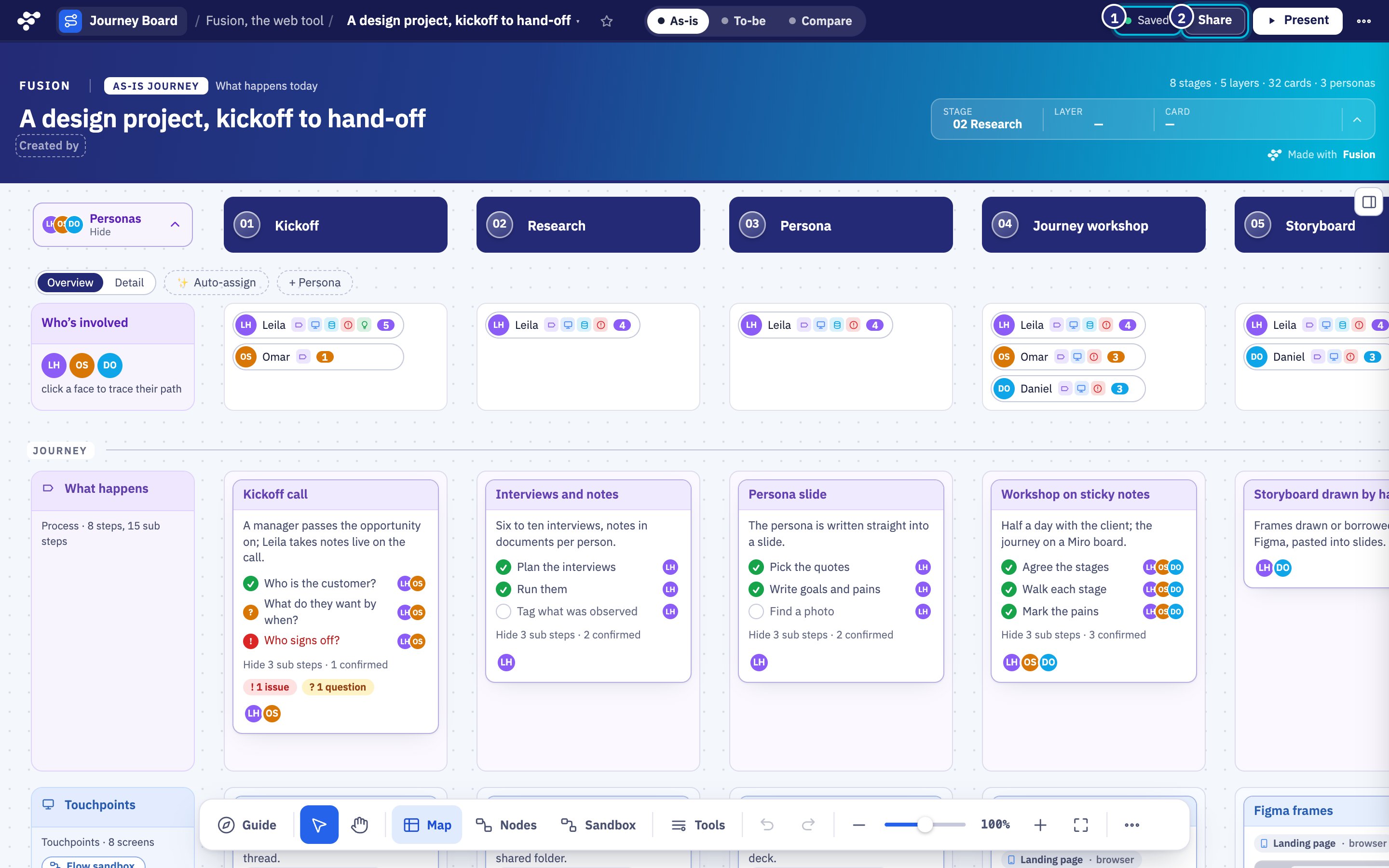
Find what you see below, then follow the steps. When something seems lost, look first at the save state at the top right of the Fusion bar (1).
"Please confirm your email first"
Why: a new account needs its email confirmed before you can sign in.
- Open the email Fusion sent when you created your account, and choose its link.
- No email? Look in your spam or junk folder for a message from noreply@joymanzanares.com.
- Go back to Fusion and Sign in.
"That email and password don't match"
Why: the password is wrong, or the account uses Google.
- If you signed up with Google, choose Continue with Google instead.
- Otherwise choose Forgot your password?, type your email and choose Send the link.
- Open the link in the email and choose a new password.
If you see This link has expired or was already used, ask for a new link the same way.
"Fusion is invitation-only for now"
Why: this account hasn't been invited to the workspace.
- Sign in with the account you were invited with.
- Or ask an admin to invite this email from the People page.
The board takes a moment to open
Why: after a quiet spell, the first request takes a second or two longer. Opening your board… shows while it loads; the board appears on its own.
A board looks empty, or rows are missing
Why: rows can be hidden, or you are in a view that can't be edited.
- Open Tools, then Settings, and check Board → Rows shown. Hidden rows keep their cards.
- If the people rows are folded, choose Personas · Show in the top-left corner of the board.
- On Compare, you can only look. Switch to As-is or To-be to edit.
- A brand-new board says Add a stage and a layer to start the board. Add them, or choose Guide.
You can't change a board
Why: the save state (1) tells you:
- View only: the board was shared with you to view. Ask its owner to share it with Can edit.
- Not saved: preview: you are exploring an example. Choose Use this example (or Make a copy) to get your own copy.
The bar says "Not saved"
Why: Fusion couldn't reach the server, for example when your connection dropped. Keep the tab open and check your connection: Fusion keeps trying, and the bar says Saved again once it gets through.
Someone else's changes don't show
Why: two people editing the same board on computers don't see each other's edits live, and the last save wins.
- Reload the page to see the latest board.
- In a workshop, one person runs the board; editors add cards from their phones, and those arrive live.
Sharing doesn't work
Why: the person has no account in this workspace, or you don't own the board. Share (2) shows who has it.
- No account with that email in this workspace: ask an admin to invite them on the People page first, then share again.
- Only the board's owner or an admin can change who it's shared with: ask the owner.
- Sharing is for saved boards: you are in a preview. Make your own copy first.
Pictures are missing
- On the cards in the Workspace: online, boards show a drawn map of the board instead of screenshots. To show a picture, choose Change picture in the board's menu.
- In a board file you exported: the window shows Putting the pictures into the file… for a moment. Wait until the text has finished changing, then choose Download .json.
Present asks for the essentials
Why: the presentation is built on the brief's six essentials, and some are empty. Choose Fill them in (or Write the essentials), fill in what's listed and save. Present opens again.
Importing a file fails
- Not a Fusion Model file (no fusionModelVersion): this is a board file (.fusion-board.json). Import it with Import in the Workspace's Fusion bar instead.
- That file isn't a board exported from this tool: this is a persona, journey, storyboard, experience or project file. Use New ▾ → Import a file instead.
- That file isn't JSON: this isn't a Fusion file. If it came in a .zip file, unzip it and pick the file inside.
Exports
- PowerPoint · loading in the Export menu: wait a moment and open the menu again.
- HTML file or a PDF on a Journey Board opens a new tab. If your browser blocks it, Fusion opens it in the same tab.
- On Safari, pinching the trackpad zooms the whole page, not the board. Use the Zoom slider in the toolbar.