Troubleshooting: PowerPoint
What to do when Fusion for PowerPoint doesn't appear, doesn't open, or doesn't do what you expect.
Most problems with Fusion for PowerPoint come from how the add-in was added, or from an older PowerPoint. Each item below gives what you see, why it happens, and what to do.
The add-in doesn't appear
What you see: there's no Open Fusion on the Home tab, and no Fusion under Home › Add-ins.
Why: PowerPoint only looks for new add-ins when it starts, or the add-in file isn't where PowerPoint looks.
What to do:
- Quit PowerPoint completely and open it again.
- On a Mac: check the file
fusion-for-powerpoint.xmlis in theweffolder. In the Finder, choose Go › Go to Folder… and paste~/Library/Containers/com.microsoft.Powerpoint/Data/Documents/wef. If the folder isn't there, make it, put the file in, and restart PowerPoint. - On the web: an add-in you uploaded is kept in your browser. Clearing the browser's data, or using another browser, loses it. Upload it again: Home › Add-ins › More Settings (or Advanced) › Upload My Add-in.
- If your organisation's IT team added it, it can take a day or two to reach you.
Fusion on Windows
What you see: you can't find a way to add the file in PowerPoint for Windows.
Why: on Windows, add-ins are added for the whole organisation by the IT team.
What to do:
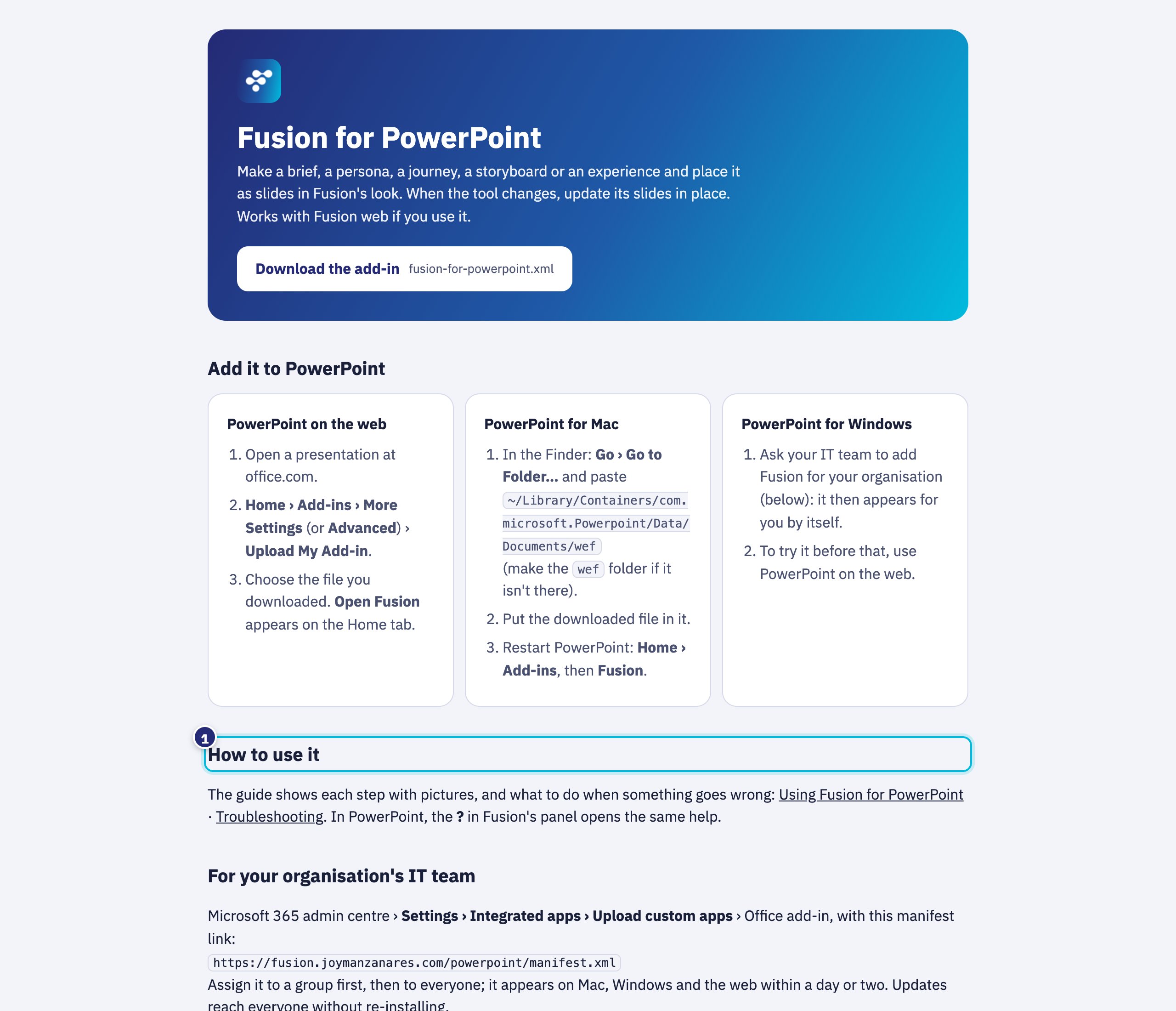
- Send your IT team the install page, https://fusion.joymanzanares.com/powerpoint/. Its For your organisation's IT team section says how to add it.
- Until then, use PowerPoint on the web, where you can upload the add-in yourself.
The panel is blank
What you see: the Fusion panel opens, but stays white or empty.
Why: the panel didn't load, often after a network hiccup or an update.
What to do:
- Close the panel and choose Open Fusion again.
- If it's still blank, restart PowerPoint.
- If that doesn't help, remove the add-in and add it again from the install page.
- Still blank? Tell your Fusion contact which PowerPoint you use (Mac, Windows or the web).
The editor window won't open
What you see: the panel says This PowerPoint can't open Fusion's editor window (it needs a newer version)., or Fusion's editor couldn't open: …
Why: Fusion's editor opens in its own window, which older versions of PowerPoint can't do.
What to do:
- Update Office to the latest version, then restart PowerPoint.
- If you can't update, use PowerPoint on the web.
- If the editor is already open behind your presentation, bring it to the front: only one can be open at a time.
Update undid my edits
What you see: after Update (or Update the slides), the changes you made by hand on Fusion's slides are gone.
Why: that's by design. Update makes the tool's slides again from the tool, and replaces the old ones. Slides you added yourself stay; changes on Fusion's own slides don't.
What to do:
- Make the change in the tool instead: choose Edit in the panel, change it in the pop-out, then Update the slides.
- For content that isn't part of the tool, add your own slide next to Fusion's.