Fusion card widget
Run a journey workshop in FigJam with Fusion cards everyone edits, then bring the board into Fusion.
The Fusion card is a widget for FigJam workshops. Everyone in the file edits the cards on the board: personas, stages, journey cards, votes, ideas, questions and priority dots. One click lays out a whole workshop board. Afterwards, Fusion for Figma reads the cards back into a Journey Board.
What the widget counts. When you make a card, lay out a workshop board or make a Fusion journey editable, the widget sends a short note: your Figma name and id, the action and the kind of card. Never what anyone wrote. Only Fusion's owner sees these notes.
Fusion for Figma draws its tools in FigJam with these same cards and has the widget's systems: Add a card, Tidy the board, Count the votes (FigJam stamps are the votes) and Tick it off. See Fusion for Figma, In FigJam.
Make a journey from Fusion editable by everyone
A journey that Fusion for Figma placed on a FigJam board can be edited and voted on by everyone in the file, without the plugin:
- Drop a Fusion card on the journey (or next to it).
- On the picker, choose Fusion journey. Every stage, journey card and How it feels card becomes a Fusion card in its place, and the card you dropped becomes the board's guide.
- Now anyone can change a card's words and tags, choose its layer from the card's menu, mark a pain resolved, add the next card in a row, and tap a face to vote how each stage feels: one vote each, tap another face to change it, tap the same face to take it back. The card shows the count per face, the room's feeling and who voted.
- To bring the room's work into Fusion, open the journey in the Fusion plugin and choose Get changes from the board. The room's vote becomes the feeling of each stage, with how many voted.
If someone changes the journey in Fusion and updates it on the board, the room's cards and votes stay. Press Bring in Fusion's changes on the guide card to show Fusion's changes on the cards and make Fusion's new cards editable.
Add a card
The widget is published privately to the Thales organisation.
- In a FigJam file, open the widgets in the toolbar and search for Fusion card.
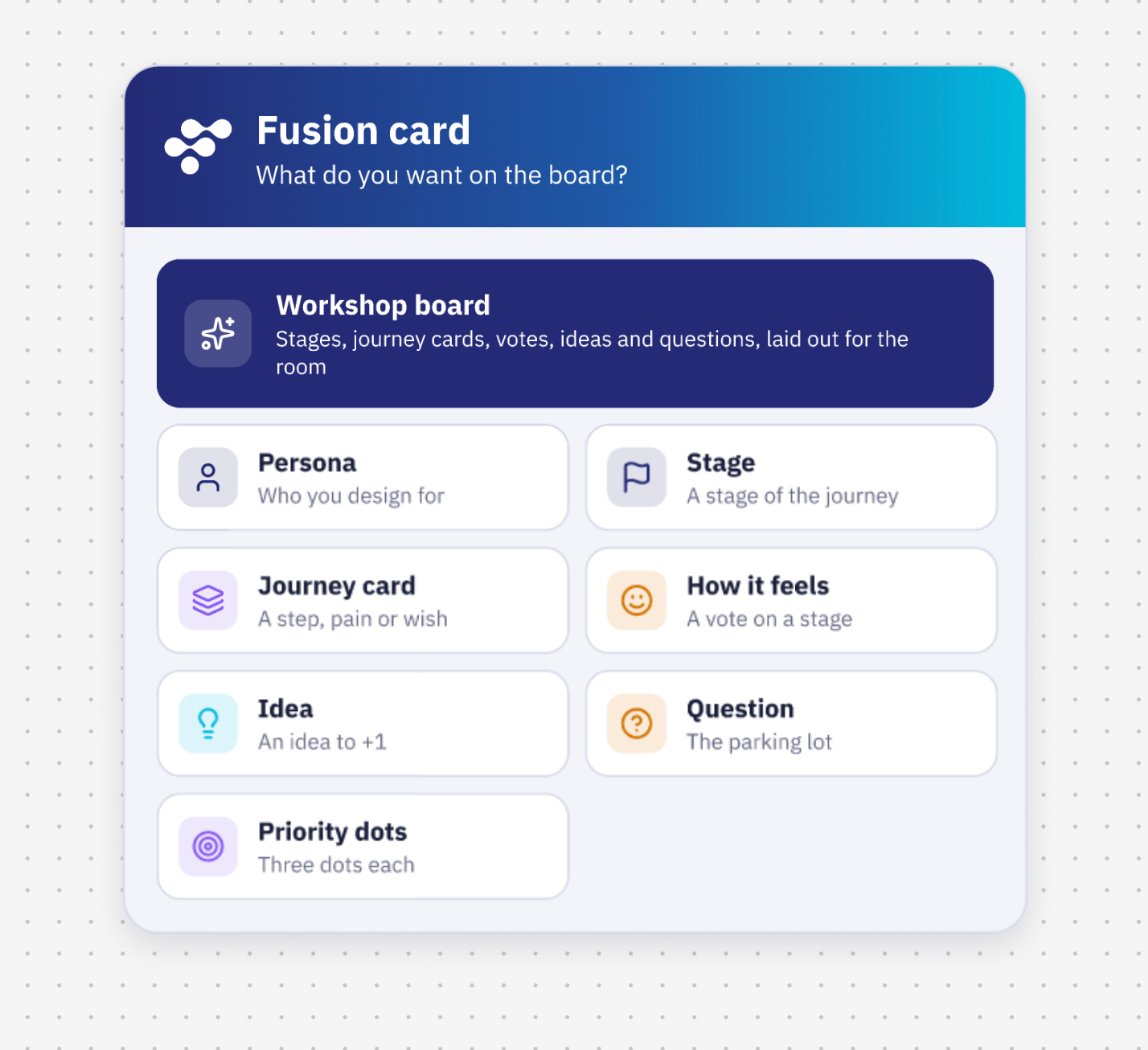
- Drop it on the board. It opens on the picker, What do you want on the board?
- Choose Workshop board, or one of the seven kinds of card.
If someone gave you a test version, it is under Widgets → Development → Fusion card instead.
The kinds of card
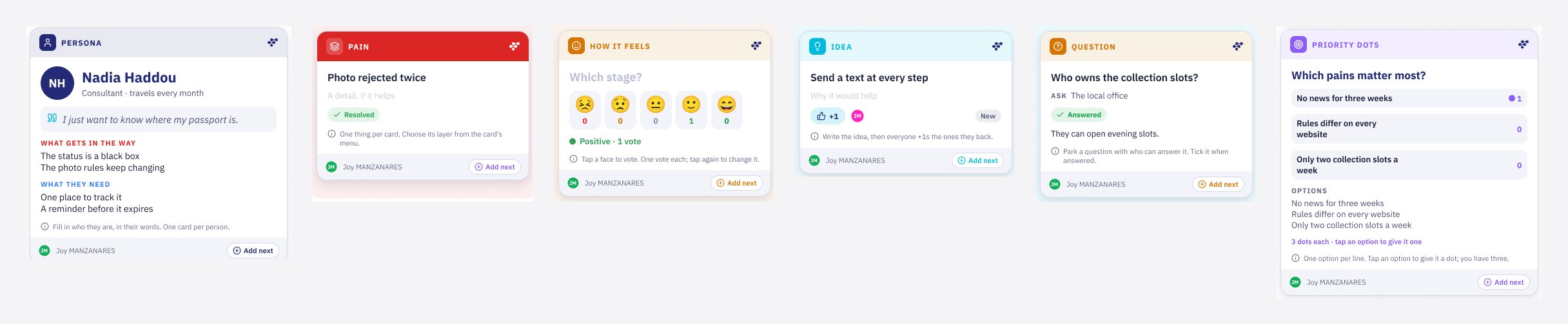
Each card shows a hint on how to use it, and who added it.
- Persona: name, role, their words, What gets in the way and What they need, one per line.
- Stage: the numbered stage of the journey. Name it and add a line on what happens there.
- Journey card: one step, touchpoint, system, pain or wish. Choose its layer in the card's menu under Layer. A pain or wish can be marked with Mark as resolved.
- How it feels: a vote on a stage. Write the stage in Which stage?, then everyone taps a face. Tap your face again to take your vote back. The card shows the count for each face and the room's average.
- Idea: write the idea and why it would help. Everyone taps the thumbs-up, which shows the count (+0, +1…), to back it, and taps again to take it back. The voters' initials show beside it. Set its Status in the menu: New, Agreed or Parked.
- Question: the parking lot. Write the question and, beside Ask, who can answer. Tap Open to mark it Answered, then write the answer.
- Priority dots: write the question, then the Options, one per line. Everyone has three dots: tap an option to give it a dot. With all three given, tap one you dotted to take it back. The options are ranked by their dots.
Add more cards
- Choose Add next at the bottom of a card. A fresh card of the same kind appears beside it, or under it on a workshop board.
- To change what a card is, choose Back to the picker in its menu. What was written stays, for if you come back.
The card's menu (select the card) also has Kind of card, Add next and Show the hint, which turns the hint on or off.
Lay out a workshop board
- Drop a Fusion card and choose Workshop board.
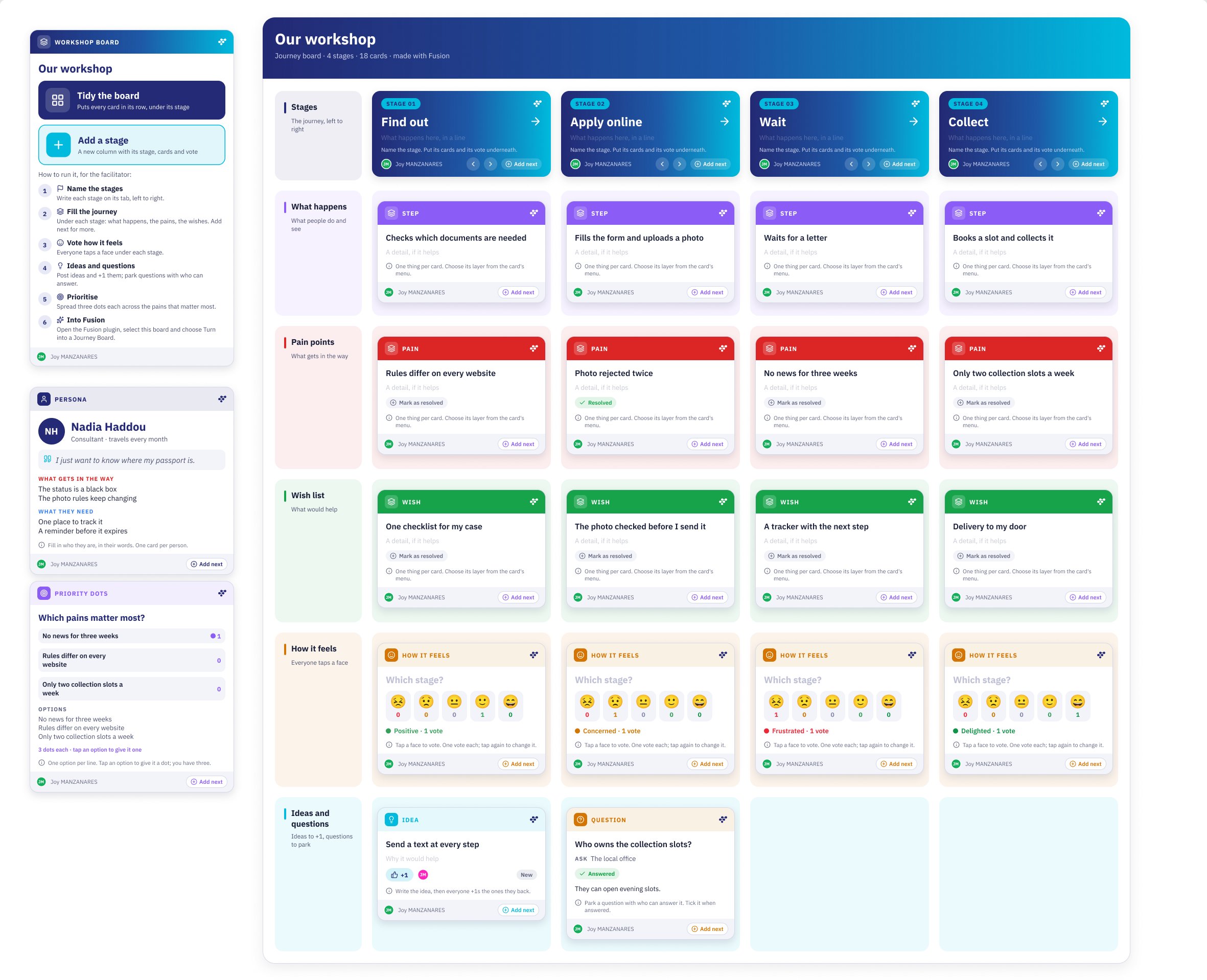
- Fusion makes a section with four stages. Under each are a step, a pain and a wish card and a vote. It adds a persona, Which pains matter most? priority dots, an idea and a question.
- The card you dropped becomes the facilitator's guide, top left. It lists six steps for running the workshop.
The board is a grid: a row per layer (Stages, What happens, Pain points, Wish list, How it feels, and more when needed) and a column per stage. The guide, personas and priority dots sit in the left column.
Keep the board tidy
- Tidy the board (on the guide): puts every card in its row, under the stage it stands nearest, and redraws the grid to fit. Use it after moving cards, or when a card has grown while someone typed.
- Add a stage (on the guide): a new column with its stage, a step, a pain and a wish card and a vote.
- Move a stage: use the arrows on the stage, or Move the stage left and Move the stage right in its menu. Its cards move with it and the stages are numbered again. Add next on a stage adds a whole column.
Both guide buttons are also in the guide's menu.
Turn the board into a Journey Board
- Open Fusion for Figma in the same file, and stay on Home.
- Select the workshop board (the section, or any card in it).
- Choose Turn into a Journey Board in the plugin's bar. The stages, cards, votes, ideas, questions and dots open as a new Journey Board.
- Choose Insert into this file to add it.
You can also put Fusion cards inside a journey the plugin placed, then choose Get changes from the board. See Fusion for Figma.