Troubleshooting: Claude
What to do when the Fusion skill or the Fusion connector doesn't do what you expect in Claude.
Most problems with Fusion in Claude come from a setting in claude.ai, an older skill answering, or Figma's side of the work. Each item below gives what you see, why it happens, and what to do.
"node: command not found"
What you see: Claude says it can't run the program, or you see node: command not found or a similar error.
Why: code execution is off, so the skill can't run its program.
What to do:
- In claude.ai, open Settings › Capabilities.
- Turn on Cloud code execution and file creation.
- Start a new chat and try again.
The old Fusion skills answer instead
What you see: Claude asks for a kickoff first, or pastes long Figma helper code, instead of showing a receipt.
Why: the older Fusion skills are still on, and one of them answered.
What to do:
- Open Customize › Skills and turn off the older Fusion skills (fusion-kickoff, fusion-persona and the rest). Keep only fusion on.
- Start a new chat.
Claude lists problems with the project
What you see: Claude runs check and gets "ok": false with a list of problems.
Why: that's the check doing its job. It finds anything the Fusion tools wouldn't accept: a missing name, a source that doesn't exist, a card without items.
What to do:
- Let Claude fix the project and run
checkagain. It should end with"ok": true. - If Claude gives up, copy the list and send it to your Fusion contact.
A real name is still in a persona
What you see: a persona, its file's title or the brief's sources still name someone you interviewed, their company or their site.
Why: personas are anonymous by default, and the skill's program finds names by rule: the persona's name, the names in the sources, the place, email addresses. A name it couldn't know about (a nickname, a team, a system) stays.
What to do:
- Tell Claude what to hide, for example: "Also hide Trixell and the night team."
- Claude runs
anonymiseagain with those words and tells you what changed. - Read the persona through before you share it.
The skill can't open a link
What you see: Claude says it can't open a web page or a shared link to your research.
Why: claude.ai runs the skill in a closed space with no internet. That's why the skill carries all its code with it, and why it hands you files rather than sending them anywhere.
What to do:
- Attach your research as files instead of links.
- Keep the project file Claude gives you: any output can be made again from it later, in a new chat.
Claude can't save to Fusion web
What you see: Claude says it can't save the project in Fusion web or open your Fusion web projects.
Why: the Fusion skill works on its own, from your files. Reading Fusion web is the Fusion connector's job.
What to do:
- Import the project file into Fusion web yourself: New ▾ › Import a file in the Workspace.
- To let Claude read your Fusion web projects, add the Fusion connector (see The Fusion connector for Claude).
The Figma steps fail
What you see: Put it in Figma stops with an error, or nothing appears in the file.
Why: usually one of these:
- Figma's connector isn't on in this chat.
- The link is to a FigJam board or a Slides file. The steps need a Figma design file.
- The file is in a free (Starter) team, which allows only three pages per file. A project needs more.
- Claude changed a step's code. The steps must run exactly as the program wrote them.
What to do:
- Check Figma's connector is on in the chat.
- Give Claude the link to a Figma design file, in a team that allows more pages.
- Ask Claude to run the steps again, in order, unchanged. If one still fails, ask it to tell you the error rather than rewrite the step, and send the error to your Fusion contact.
Pictures are left out in Figma on purpose. To place them, use the Fusion plugin in Figma.
The Fusion plugin won't open the project file
What you see: in Figma, the Fusion plugin shows a message when you choose Open a project file… and pick the
.fusion-project.json file, or nothing is placed.
Why: the file isn't the project file, it was changed after Claude made it, or it has a problem the check would have found.
What to do:
- Make sure you picked the file whose name ends in
.fusion-project.json, not the PowerPoint or an HTML page. - Ask Claude: "Run check on the project file and fix what it lists, then give me the file again."
- Open the new file in the plugin, then choose Insert the whole project.
- Open the plugin in a Figma design file (not FigJam or Slides), in a team that allows more than three pages.
The project file won't import into Fusion web
What you see: Fusion web shows a message when you import the .fusion-project.json file, such as That file isn't
JSON, Not a Fusion project file (it needs fusionProject and files)., or Couldn't import the project: …
Why: the file isn't the project file, it was changed after Claude made it, or it has a problem the check would have found.
What to do:
- Make sure you picked the file whose name ends in
.fusion-project.json, not the PowerPoint or an HTML page. - Ask Claude: "Run check on the project file and fix what it lists, then give me the file again."
- Import the new file.
- If you don't see New ▾ in the Workspace, you have a viewer's role. Ask the person who invited you for an editor's role.
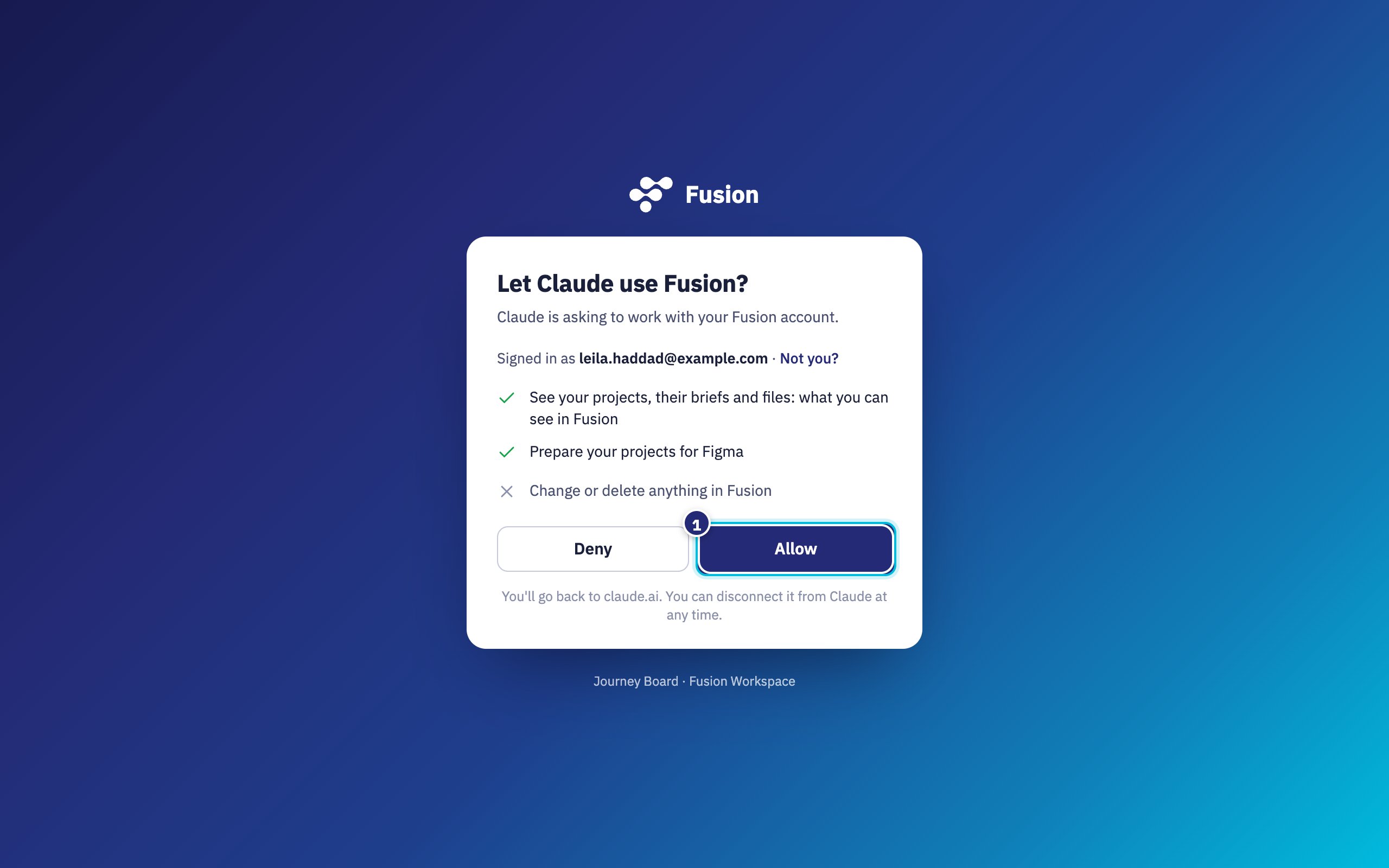
The Fusion connector asks you to sign in again
What you see: Claude says the Fusion connector needs you to sign in, or Fusion's page says This request has expired. Go back to the app and connect again.
Why: your sign-in ended, or the approval page stayed open too long.
What to do:
- In claude.ai, open Settings › Connectors and connect Fusion again.
- Sign in to Fusion if asked, and choose Allow.
If Fusion's page says Signing in didn't finish, sign in on fusion.joymanzanares.com in the same browser first, then connect again from Claude.