Sharing and importing
Share boards and projects, keep your favourites close, use the trash, and bring in files made elsewhere.
Your files are yours until you share them. You can share one Journey Board, or a whole project with every file in it. This topic also covers stars, the trash, and bringing in files made with the Fusion skill in Claude.
Who can do what
Everyone in Fusion has a role:
- Owner: everything, including making and removing admins. There's one owner.
- Admin: everyone's boards and the examples. Invites and manages editors and viewers.
- Editor: creates and edits their own boards, and uses the examples.
- Viewer: looks at the gallery and previews examples, and sees what is shared with them. Creates nothing.
Your role shows under your name when you select your initials at the top right. To share with someone, they need a Fusion account in the same workspace. If they don't have one, ask an admin to invite them.
Share a Journey Board
- Open the board, select Share (1) in the Fusion bar, then Invite people….
- Type the email of someone in the workspace.
- Choose Can edit or Can view (2), then select Share.
- To change someone's access later, pick a different choice beside their name. To stop sharing, select × beside them.
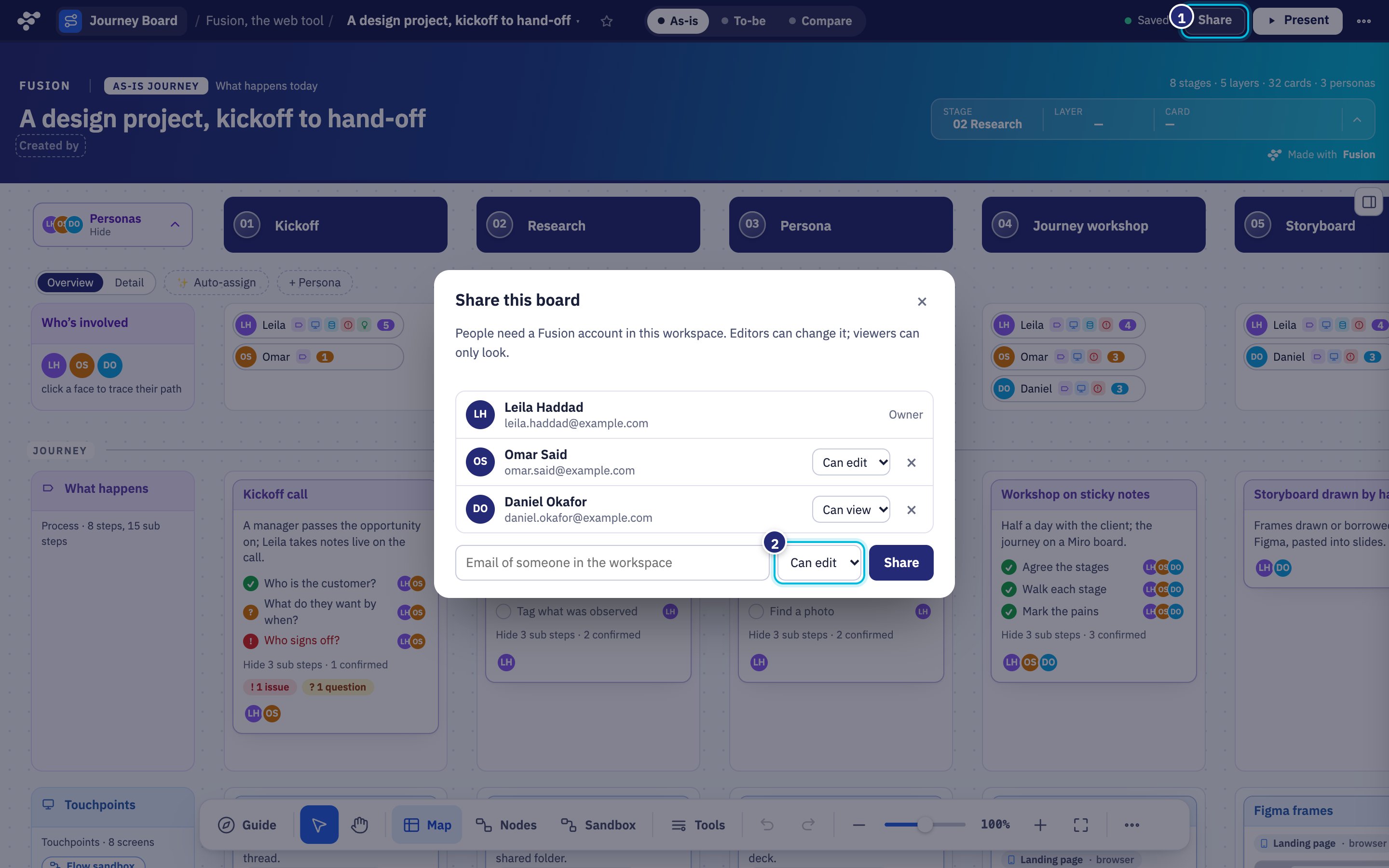
Only the board's owner or an admin can share it. Someone the board is shared with can leave it by selecting × beside their own name.
When a board is shared with you to look at, the Fusion bar shows View only.
Share a project
Sharing a project shares every file in it, now and later.
- Open the project in the Workspace and select Share (1).
- Under Add someone, type their email.
- Under As, choose Editor or Viewer, then select Share (2).
- Select Done.
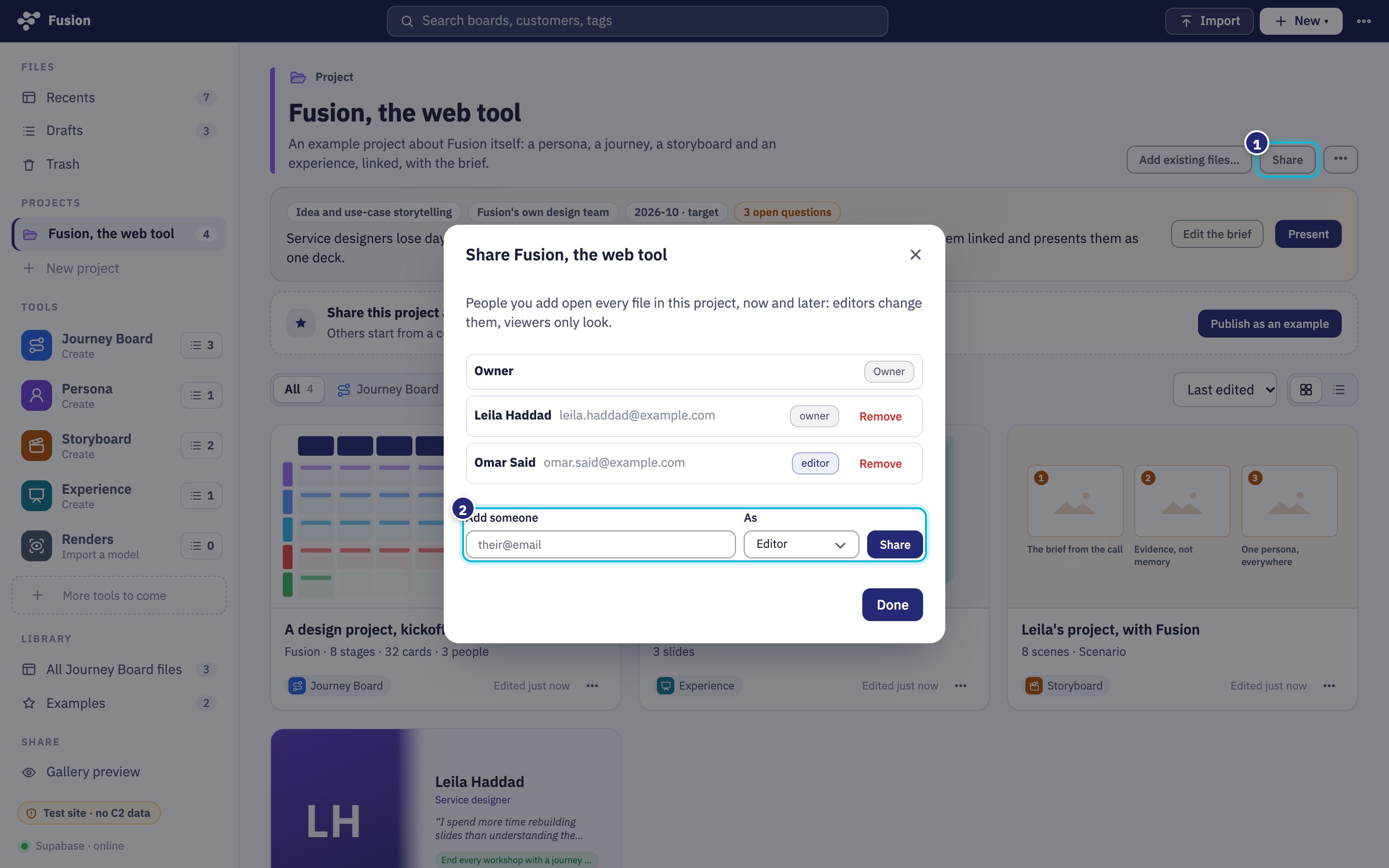
To take someone off, select Remove beside their name. Only the project's owner or an admin can share it.
Star what you use most
- Open the ⋯ menu on a file's card and select Star. In an open file, select the star beside its name.
- To star a project, open it and select Star from its ⋯ menu.
- Select Starred in the side panel to see them all.
To take a star off, select Unstar.
Use the trash
- To remove a file, open the ⋯ menu on its card and select Move to trash.
- To see what is in the trash, select Trash under Library in the side panel. It shows the trash of the tool you have chosen.
- To bring a file back, open its ⋯ menu and select Restore.
- To remove a file for good, select Delete for good. To remove everything, select Empty trash.
Deleting for good removes the file and its history. It can't be undone.
Import a project from the Fusion skill
The Fusion skill in Claude can hand you a whole project as one file, ending in .fusion-project.json. It holds the brief and every file, already linked.
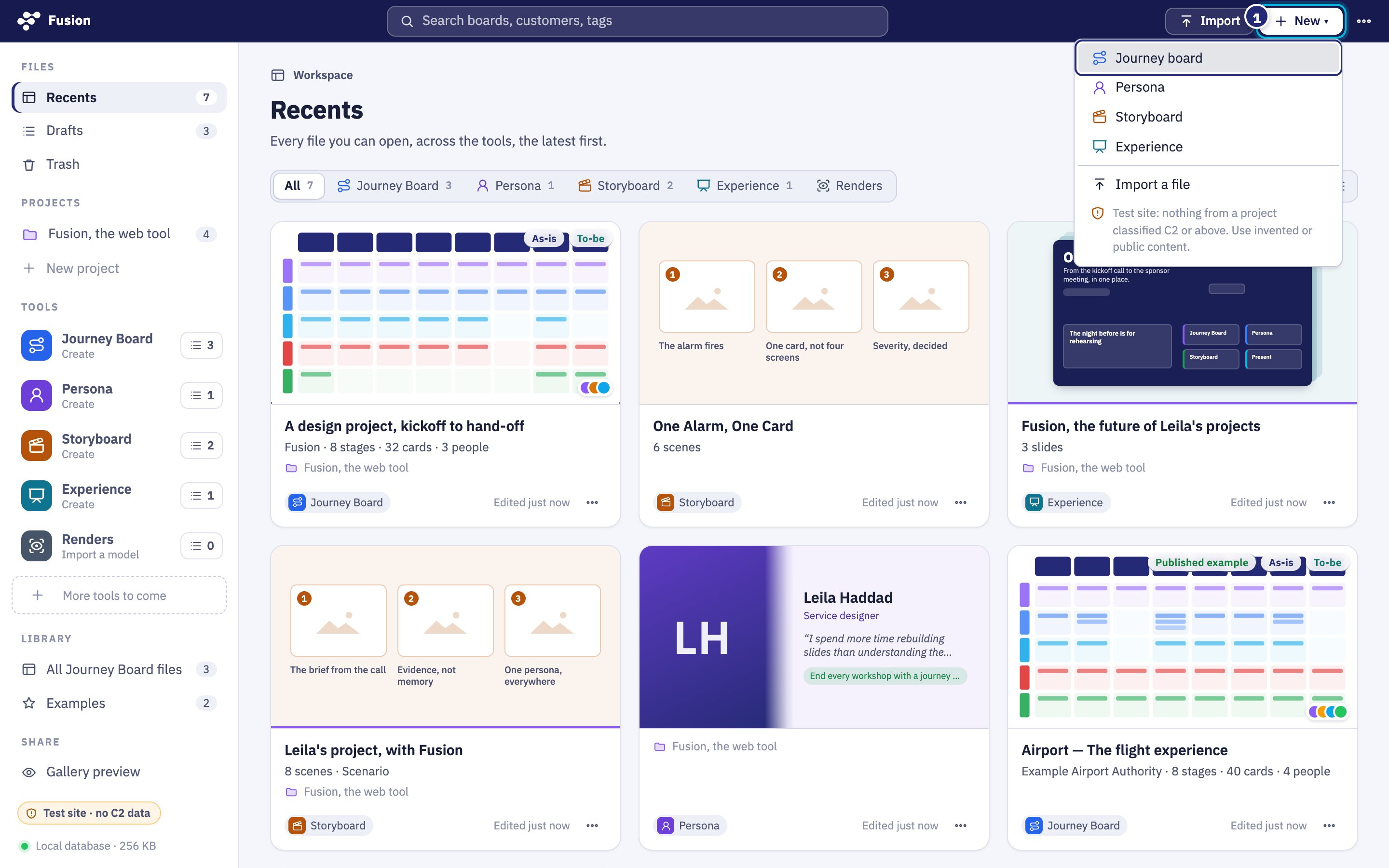
- In the Workspace, select New ▾ (1) in the Fusion bar.
- Select Import a file, and choose the .fusion-project.json file.
- Fusion makes a new project with the brief and the files, and opens it. A message says how many files came in.
The personas come in first, so the journeys, storyboards and experiences still point at them.
Import one file from the skill
The skill also makes single files ending in .fusion.json: a persona, a journey, a storyboard, an experience or a brief.
- Select New ▾, then Import a file, and choose the file. You can also select Renders under Tools in the side panel, then Import a file.
- A persona, storyboard or experience goes into its own tool, where you can edit it.
- Anything else, such as a journey or a brief, goes into Renders: it is drawn as a board in Fusion's look.
To put a brief from the skill into a project you already have, use Import from a .fusion.json… in the brief form. See Projects and the brief.
Bring back a Journey Board you saved
The Export JSON choice in the ⋯ menu on a Journey Board's card saves the board as a file. To bring it back, select Import in the Workspace's Fusion bar and choose the file.
Take a whole project out
- Open the project in the Workspace and open its ⋯ menu.
- Select Export project file. Fusion downloads one file ending in .fusion-project.json, with the brief, every file and their pictures.
- To open it elsewhere: New ▾ › Import a file in Fusion web, Open a project file… in the Figma plugin, or File › Import… in Fusion offline (the desktop app).
Importing makes a new project each time; nothing is replaced. Fusion offline asks first when it already has the same files.