Fusion for PowerPoint
Make a brief, a persona, a journey, a storyboard or an experience in PowerPoint and place it as slides in Fusion's look.
Fusion for PowerPoint puts Fusion's tools inside PowerPoint. You make a brief, a persona, a journey, a storyboard or an experience in Fusion's editor, and place it as slides in Fusion's look. When the tool changes, you update its slides in place. The tools you make are saved inside your presentation, so they travel with the file. Nothing you make is sent anywhere.
Install the add-in
- Go to https://fusion.joymanzanares.com/powerpoint/.
- Choose Download the add-in (1). You get a file called
fusion-for-powerpoint.xml. - Add it to your PowerPoint:
- PowerPoint on the web: open a presentation at office.com. Choose Home › Add-ins › More Settings (or Advanced) › Upload My Add-in, and pick the file.
- PowerPoint for Mac: in the Finder, choose Go › Go to Folder… and paste
~/Library/Containers/com.microsoft.Powerpoint/Data/Documents/wef. Make theweffolder if it isn't there. Put the file in it, then restart PowerPoint. - PowerPoint for Windows: ask your IT team to add Fusion for your organisation; it then appears for you by itself. To try it before that, use PowerPoint on the web.
- For IT teams: the page's For your organisation's IT team section (2) gives the link to add it in the Microsoft 365 admin centre, under Settings › Integrated apps › Upload custom apps. Updates then reach everyone without installing again.
Open Fusion
- Open a presentation.
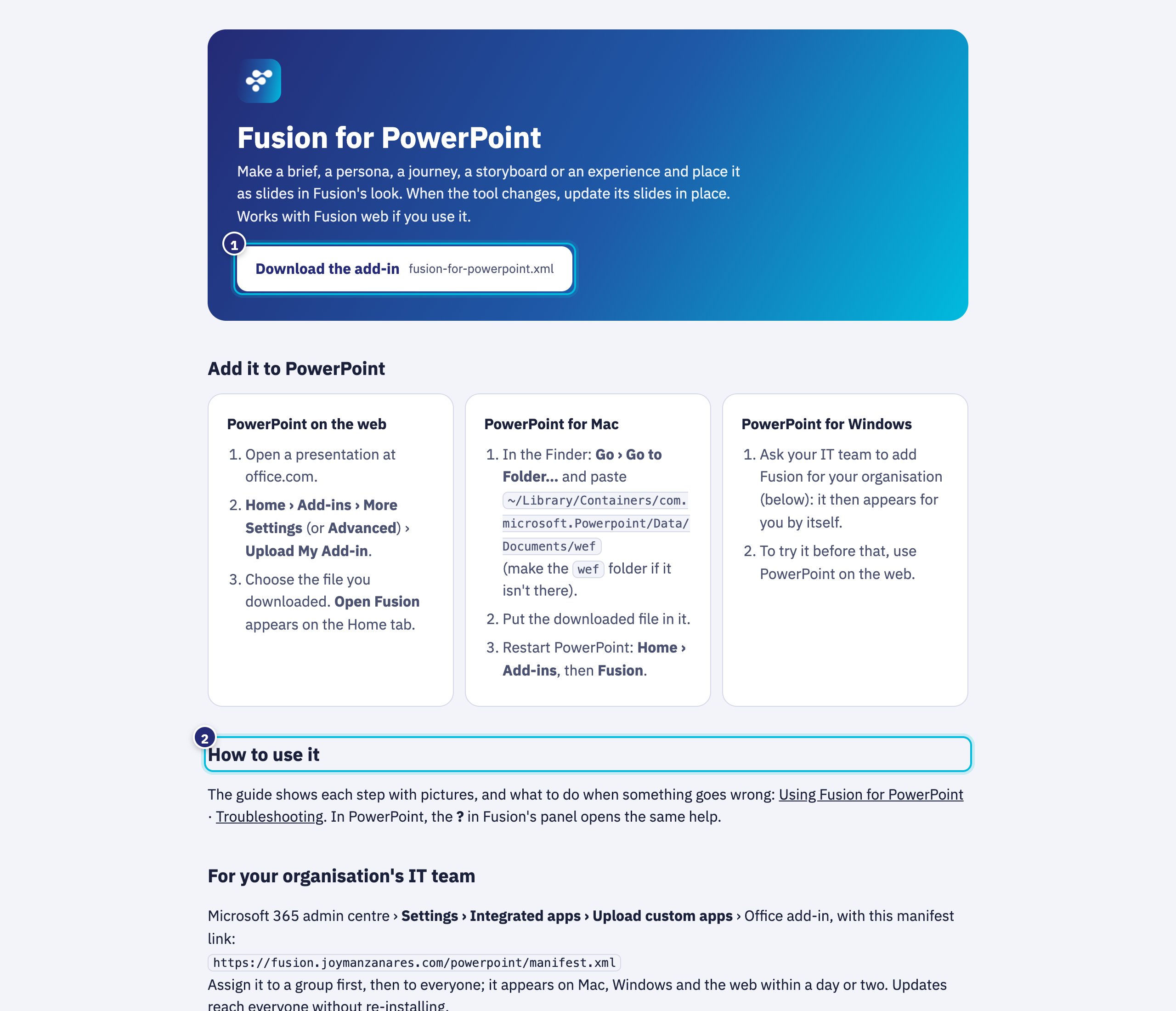
- On the Home tab, choose Open Fusion. (On the Mac you may find it first under Home › Add-ins, then Fusion.)
The Fusion panel opens at the side, with three tabs: In this deck, New and Examples. In a new presentation it says Nothing from Fusion here yet: choose Start something or Examples. The ? at the top of the panel opens this help.
The panel follows PowerPoint's theme, light or dark. The button beside the ? changes it: As PowerPoint, Light or Dark. Fusion remembers your choice, and the pop-out opens in the same.
Start a tool
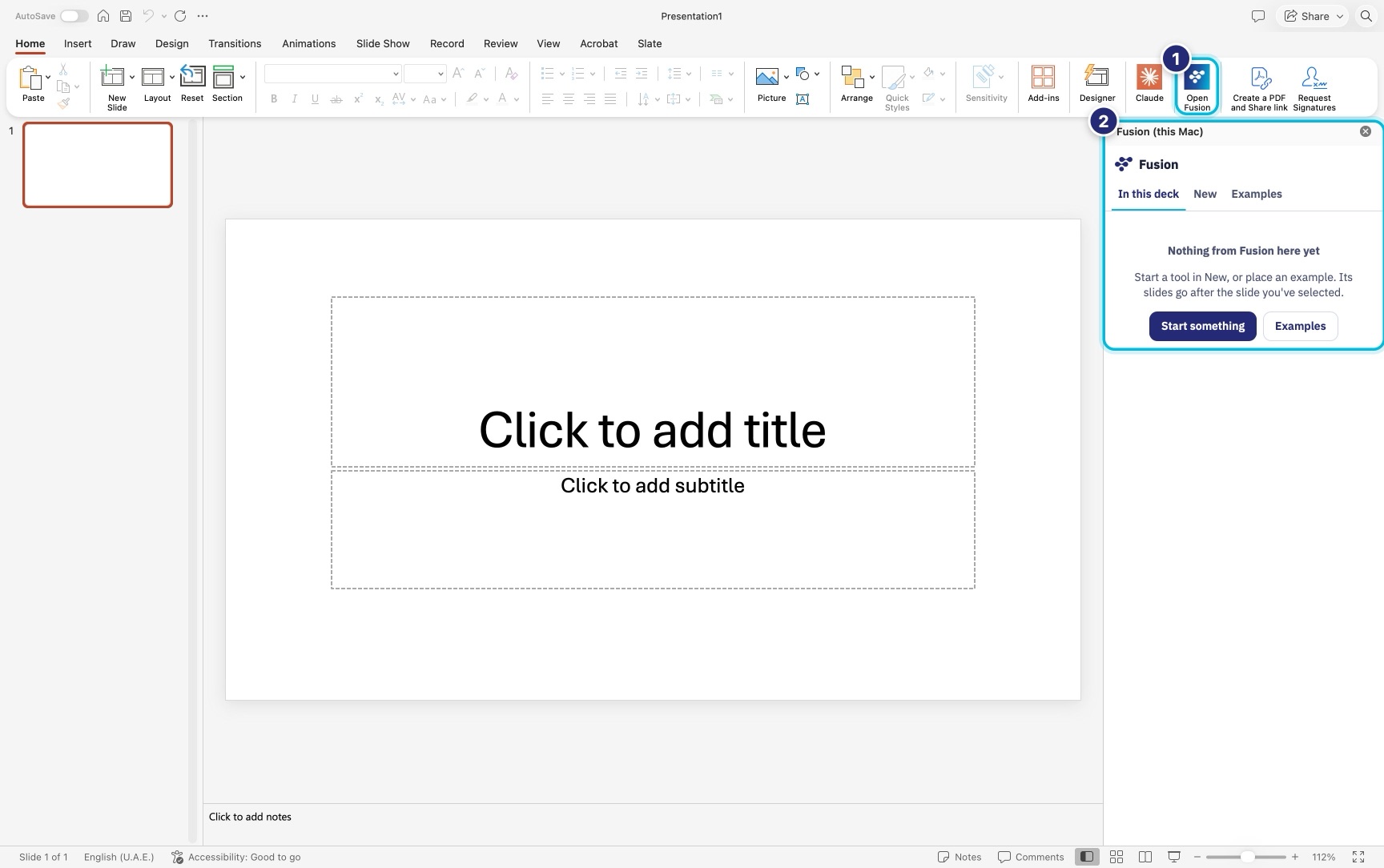
- Select the slide you want the new slides to follow.
- In the panel, choose the New tab.
- Choose a tile (1): Brief, Persona, Journey Board, Storyboard or Experience.
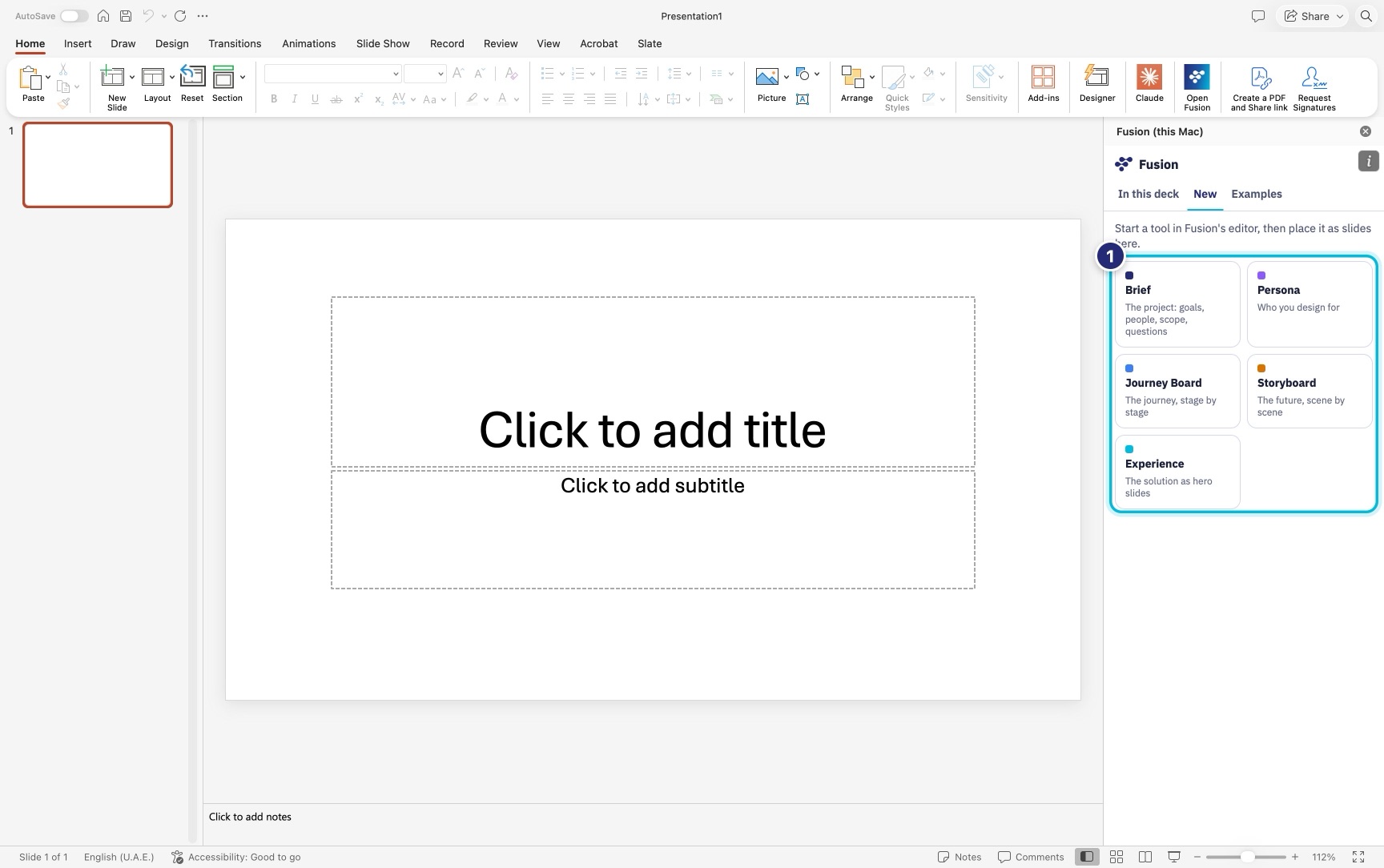
Fusion's editor opens in a larger window over your presentation: the pop-out. Work on the tool there, as you would in Fusion web. Its menu on the left (2) has Home, the examples, what's in this deck, a new tool of each kind, and Help.
Insert it into the presentation
- In the pop-out, choose Insert into the presentation (1), at the top right.
- The slides go after the slide you selected. If none is selected, they go at the end.
- The tool now appears in the panel's In this deck tab.
Once inserted, the same button reads Update the slides. Use it whenever you change the tool in the pop-out. Next to the tool's title, its status says In the slides · up to date, or In the slides · changes not placed when the slides show an older version. Choose the status, or Show the slides in the title's menu, to select its slides.
Beside the button, Animated or Still sets how the slides come in: Animated (the default) brings each slide's elements in, in order; Still makes slides with no animation. It's the same choice as in the panel, and Fusion remembers it. Export downloads a PDF of the tool: the same pages as its slides.
The pop-out works like Fusion for Figma's window: the title opens File details, ⌘K (Ctrl+K) finds anything, Guide walks you through a tool, and Help has these pages. Things that only make sense on a Figma canvas, such as Flow and the Sandbox as drawings, placing every draft at once, and version history, aren't offered here.
Place an example
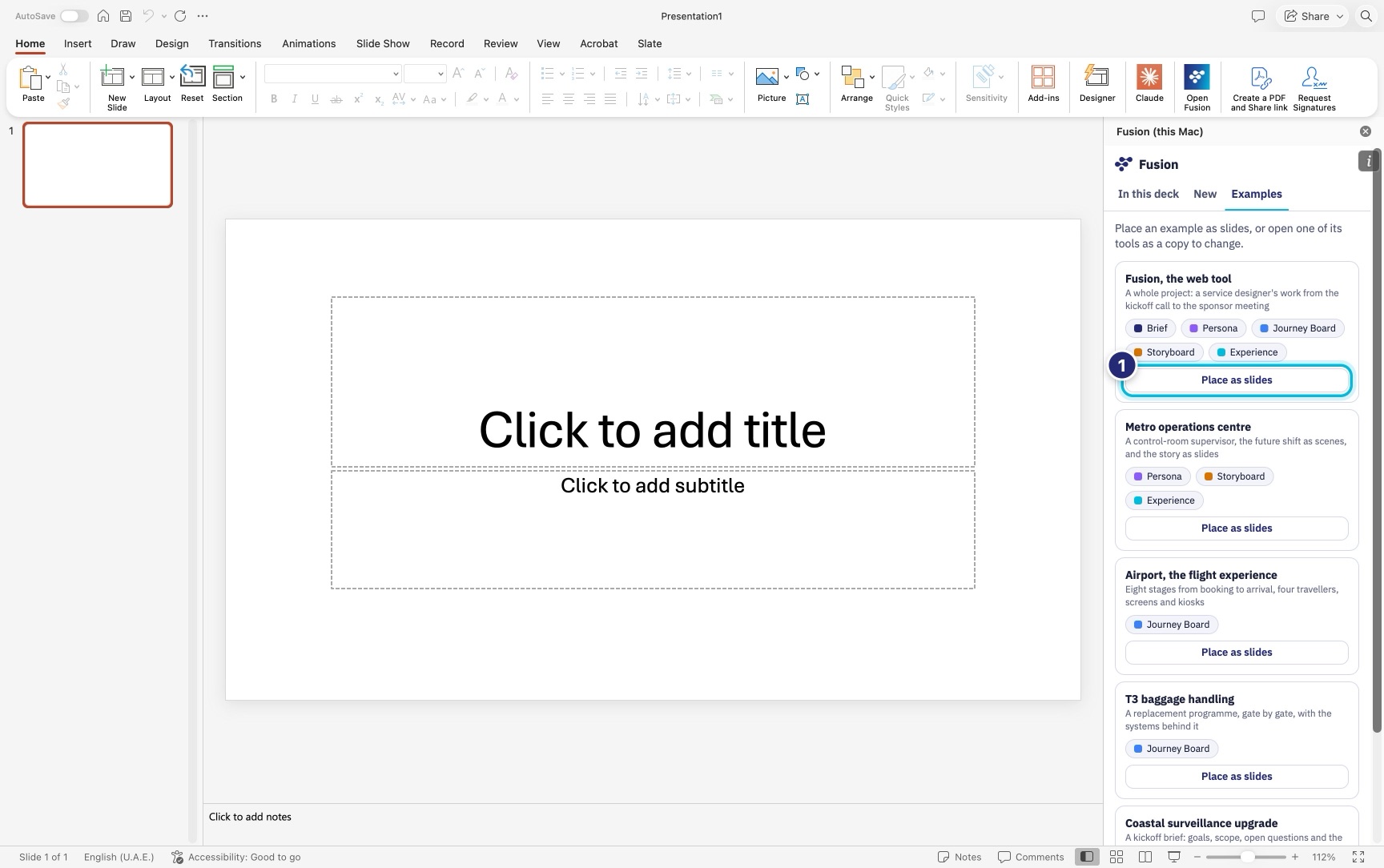
- Choose the Examples tab.
- Choose Place as slides under an example to place all of its tools.
- Or choose one of its tools to open a copy in the pop-out, change it, then place it.
The examples themselves never change.
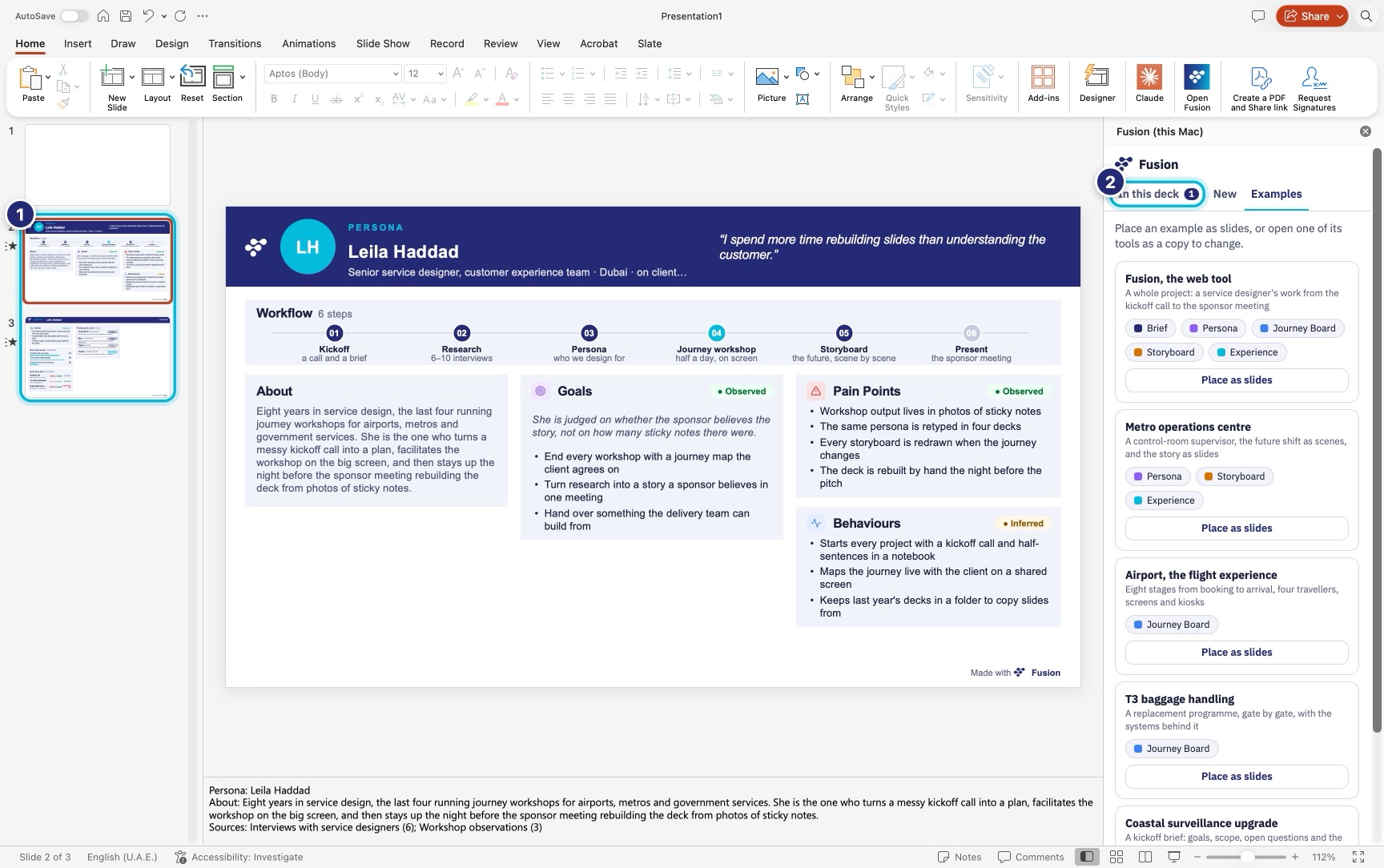
The slides arrive after the selected slide, in Fusion's look, with the tool's details in the speaker notes. The In this deck tab now counts the tool.
Work with what's in the deck
The In this deck tab lists every Fusion tool in this presentation, with how many slides it has and its status: In the slides · up to date, or In the slides · changes not placed when you changed it in the pop-out since its slides were made. Selecting one of its slides outlines it in the list. Each tool has five buttons (1):
- Edit opens it in the pop-out.
- Update makes its slides again, in the theme you chose. It stands out when the slides are behind.
- Show selects its slides.
- PDF downloads a PDF with the same pages as its slides.
- Delete removes its slides. It asks Sure?: choose it again within a few seconds.
With more than one tool, Update all updates every tool at once.
At the top of every tab, New slides: Animated or Still sets how the slides Fusion makes come in, for new slides and updates. Animated is the default; Fusion remembers your choice.
A journey with a To-be also gets its Flow and Sandbox pages, and a storyboard its scenes as cards: the same pages as Fusion web's PowerPoint and PDF.

What Update replaces
Update swaps the tool's slides for new ones, in the same place. Anything you changed by hand on those slides is replaced. Slides you added yourself, even between Fusion's slides, stay as they are.
To keep a change, make it in the tool (Edit), then update.
If something goes wrong, see Troubleshooting: PowerPoint.