Persona
Write a persona on its own board, mark where each finding comes from, and link it to your journeys.
A persona says who the journey is for: their goals, pain points, behaviours and needs, how they feel, the tools they use and how they work. In Fusion the persona board is also the editor. You write straight on it, and it saves as you go. Write a persona once and the Journey Board, Storyboard and Experience can all use it.
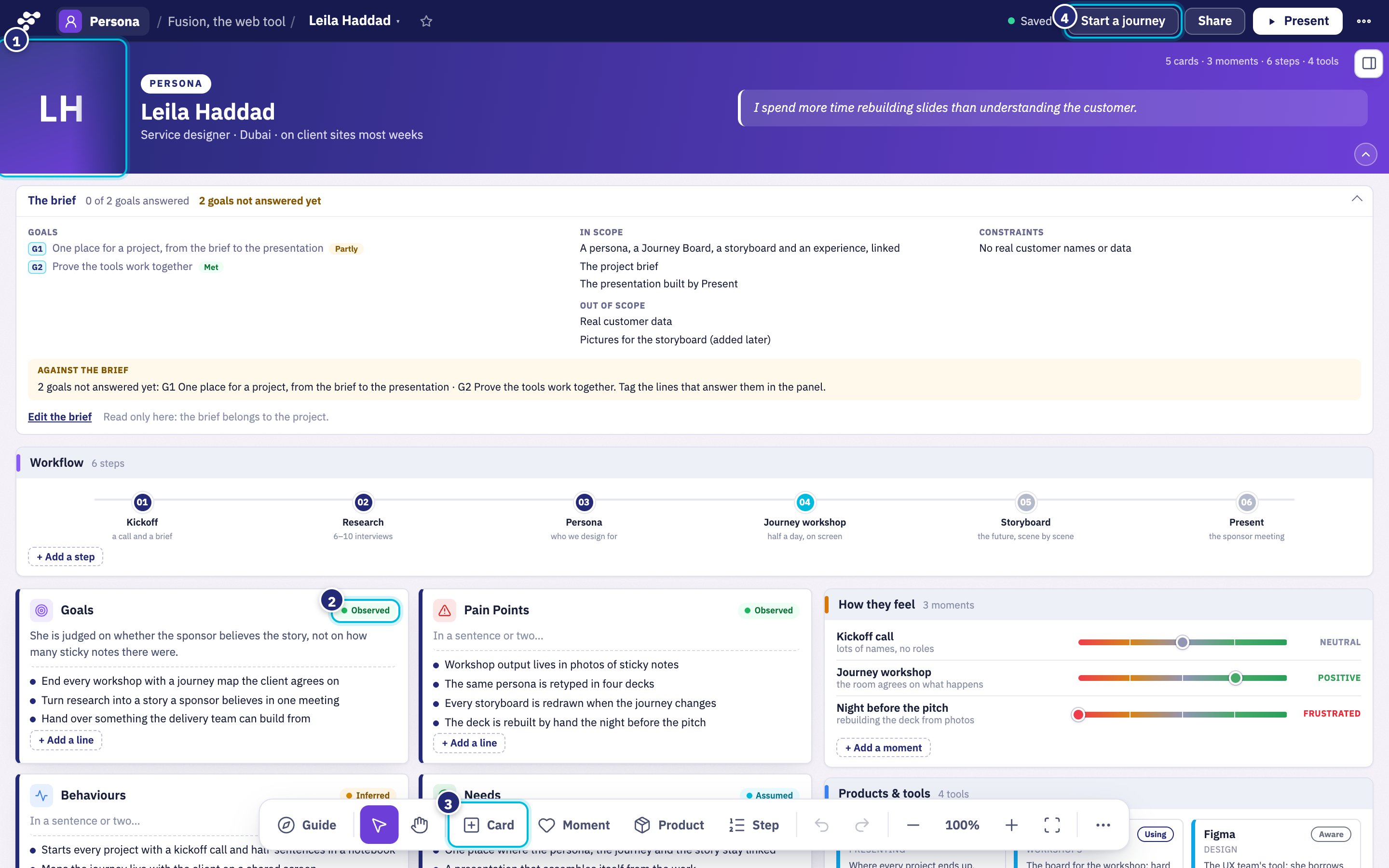
Start a persona
- In the Workspace, click Persona in the tools list on the left.
- Click New persona, or pick one under Or start from an example.
- To add it to a project, open the project first and choose New ▾, then New persona.
The new persona opens on its board. Click any text to write. Press Enter to finish a line.
New to it? Choose Guide, first in the toolbar (or press F). It walks you through the board in short steps, from who they are to their photo, and outlines each part as it talks about it. Back, Skip and Next move between steps; the cross closes it, and Guide remembers the step you were on for this persona.
Fill in the banner
- Click Name and type the person's name. The file takes this name.
- Click Role and Where to add their job and location.
- Click the quote line and write something they said, in their own words.
- Click the round photo (1) to add a picture. To take it off, click the small × beside it.
Write the four cards
Every persona starts with four cards: Goals, Pain Points, Behaviours and Needs.
- Click In a sentence or two… under the card's title to sum it up.
- Click + Add a line to add a bullet. Press Enter at the end of a line to start the next one.
- Point at a line and click the red × to remove it.
- Click the card's icon to choose a different one.
Mark where each card comes from
Each card has an evidence badge (2). It shows whether its content was observed in research, inferred, assumed or is still open.
- Click the badge to move to the next mark: observed → inferred → assumed → open.
- Leave it on open until you have something to back it up.
Add your own cards
- Click Card in the toolbar (3), or + Add a card at the end of the cards.
- Choose the kind:
- List card: a title, a sentence and bullet lines.
- Text card: a title and a paragraph.
- Sliders card: measures from 0 to 100, like motivation or comfort with technology.
- Emotion card: moments on a slider from Frustrated to Delighted.
- Tools card: products and tools with a status.
- Click the title to rename the card.
- In a sliders card, click + Add a slider, name what it measures and drag the bar to set it.
- To remove a card, point at its title and click ×.
Record how they feel
How they feel lists moments, each with a feeling.
- Click + Add a moment.
- Name the moment or topic, and add why.
- Drag the slider between Frustrated, Concerned, Neutral, Positive and Delighted.
List their products and tools
- Under Products & tools, click + Add a product.
- Write the product's name, its category, and why it matters to them.
- Click the status to change it: using → advocating → aware → avoiding.
Describe their workflow
The Workflow runs across the top of the board, as numbered steps.
- Click + Add a step and write the step and a short note.
- Click the step's number to change its state: completed → active → upcoming → inactive.
Note your sources
At the foot of the board:
- Under Sources, click + Add a source and write where the findings came from, for example "Interviews (9)".
- Under Interviewer's notes, write context, things to check, or quotes that did not fit a card.
Link a persona to a journey
There are two ways.
- Start a new journey from the persona. Click Start a journey (4) in the bar. Fusion makes a Journey Board with this persona on it: their workflow becomes the stages, their products the touchpoints, and their pains, needs and moments go in place.
- Add the persona to an existing board. On the Journey Board, open Tools, choose Personas, then click ↓ From the Persona tool… and pick the persona.
See the journeys a persona is on
- Click an empty spot on the board, so nothing is selected. The panel on the right shows the persona.
- Its section On the journey maps lists each journey with the feeling at each stage, and its pains and wishes.
- When a journey says something the persona doesn't, it offers the changes. Click ✓ to apply one or × to decline it, or use Apply all or Decline all. Nothing changes on the persona by itself.
Use the panel
Click a card to select it. The panel's Content has its title, its sentence and where it comes from; Design has its icon; Layers lists every card in order. A card you added has Duplicate and Delete in ⋯.
Keyboard shortcuts
Press ? for the full list. Besides the keys that work in every tool (see Getting started):
| Key | What it does |
|---|---|
| C | Add a card |
| M | Add a moment |
| P | Add a product |
| S | Add a step |