Getting started
What Fusion is, how to sign in, and how to find your way around the Workspace.
Fusion is a workspace of service design tools. You describe a piece of work in a project: its brief says what the work is about, and its files are made with the tools. The tools are:
- Persona: who the journey is for, with goals, pain points, behaviours and needs, and the evidence for each.
- Journey Board: how people, steps, touchpoints and systems move through a journey, today and as it could be.
- Storyboard: the story in scenes, from scratch or from a journey.
- Experience: the solution as a cinematic slide, with callouts, the scenario and the features.
- Renders: files made with the Fusion skills, drawn as boards.
The files link together. A persona can be on a journey. A storyboard can be made from a journey, and an experience from a storyboard's scenes. When you present the project, Fusion builds one presentation from the brief and its files.
Create an account or sign in
- Go to the Fusion home page and select Create a free account (1), or Sign in (2) if you already have one.
- To create an account, fill in Your name, Email and Password (at least 8 characters), then select Create account.
- Fusion sends you an email. Open the link in it to confirm your email, then sign in.
- To sign in, enter your Email and Password and select Sign in. You can also select Continue with Google.
- If you forget your password, select Forgot your password?, enter your email and select Send the link.
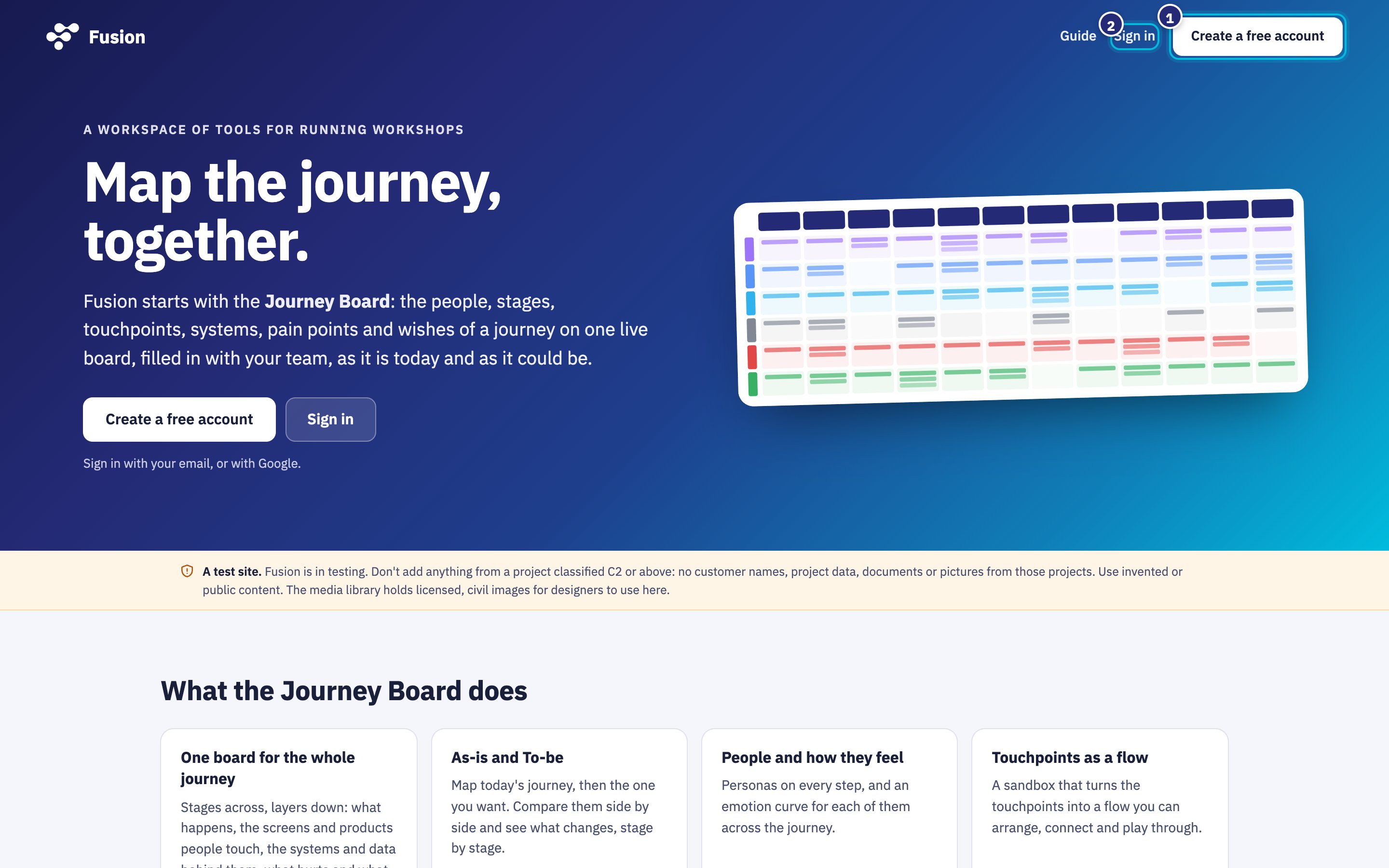
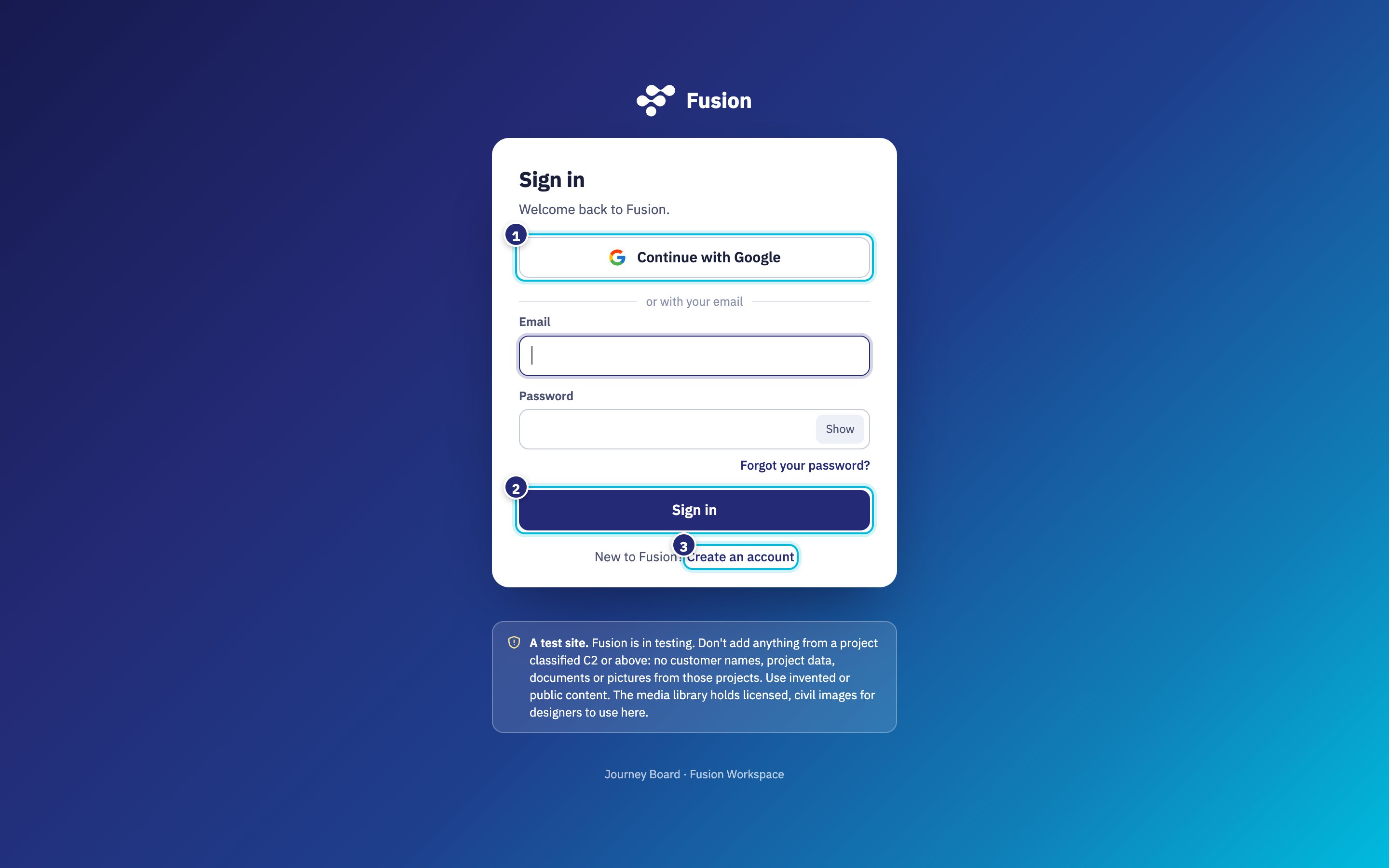
If Fusion says it is invitation-only, ask an admin to invite you, then create your account with the email they invited.
Find your way around the Workspace
After you sign in, you land in the Workspace. The side panel on the left lists your work.
- Under Files, select Recents to see every file you can open, the latest first. Drafts holds the files that are not in a project yet. Starred appears once you star a file or a project.
- Under Projects, select a project to open it, or select New project (1) to make one.
- Under Tools, select a tool's name (2) to start a new file with it, or to start from one of its examples. The number beside the name shows its files.
- Under Library, you find all of one tool's boards and the Trash.
- Use the search box at the top to look for boards, customers and tags.
- Select New ▾ (3) to make a file of any tool in the place you are in. The same menu has Import a file.
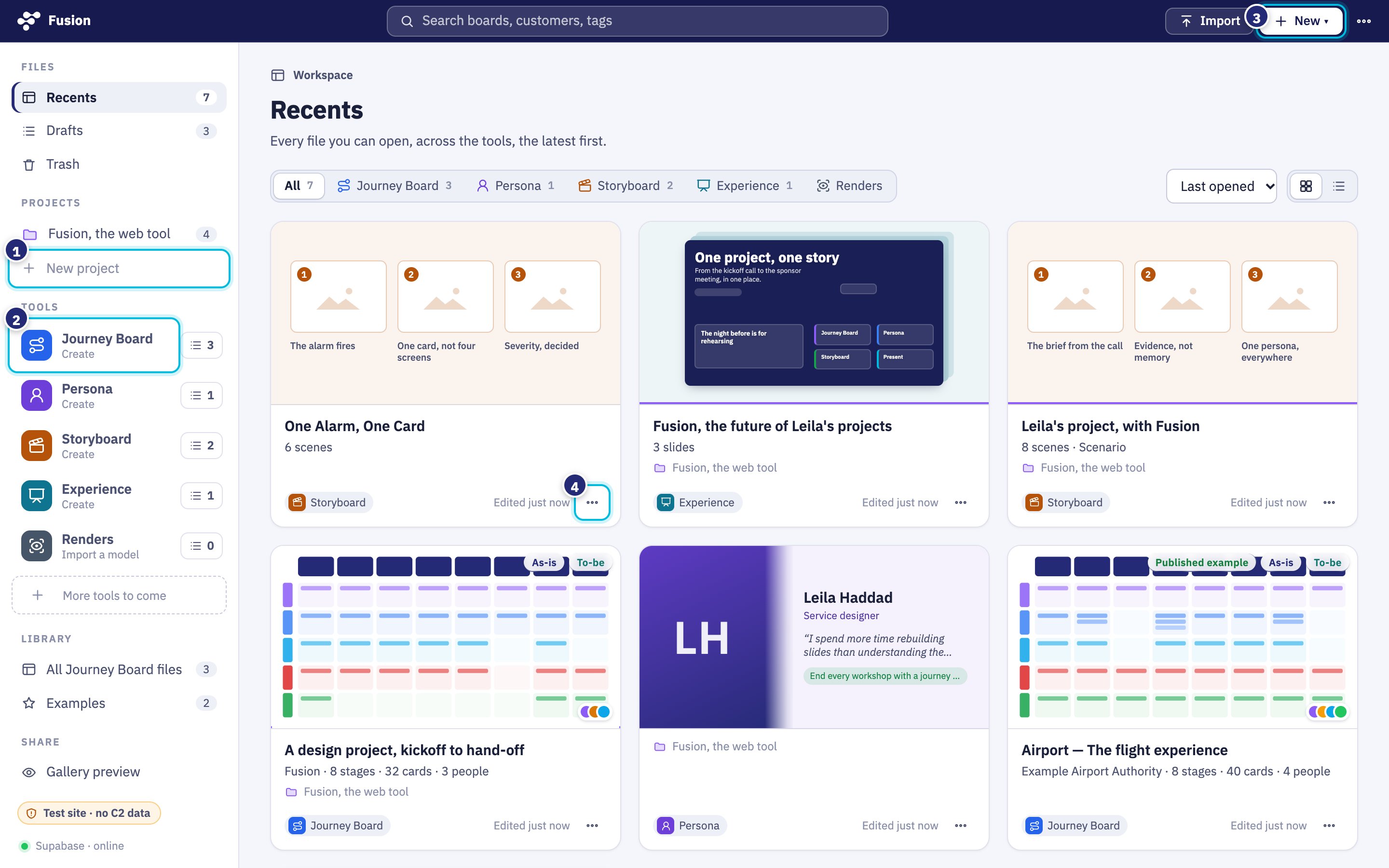
To open a file, select its card. The ⋯ button on a card (4) has the other actions: star it, move it to a project, duplicate it, or move it to the trash.
Find anything with ⌘K
Press ⌘K (Ctrl+K on Windows) on any page, or choose Search in the Fusion bar (on a phone, the magnifying glass). Type a few letters of what you want, for example "export", "drafts" or a file's title.
- It lists what you can do on this page first: Share, Present, the file's own actions, the tool's buttons and its Guide (F). Then the Workspace's places (Recents, Drafts, Examples), Settings and Theme…, New … for each tool and New project, your projects, every file you can open, and the guide's topics.
- Use the arrow keys to choose, then press Enter. Esc closes it.
- The last ones you ran come first, under Recent.
A file's details
In a tool, the file's title sits in the Fusion bar, after its project. Choose it to see the file's details: its tool, its project, what it holds (for example "6 stages · 42 cards"), its owner, when it was made, last changed and last opened.
- To rename the file, type in the title at the top and press Enter.
- Below are the file's actions: Duplicate, Move to project…, Export…, Version history… on a Journey Board, and Delete.
- Press Esc, or choose outside it, to close it.
Tips for your first visit
The first time you use Fusion, three short tips point at New, the Fusion bar's menu or the file's title, and Search. Choose Next, Got it or Skip tips. To see them again, open the menu at the right of the Fusion bar and choose Show the tips again.
Choose a theme
- Open the menu at the right of the Fusion bar (1), at the top of any page (your initials, or ⋯), and choose Theme….
- Pick a theme: Light, Dark or Match system, a Colour-blind friendly theme, a High contrast theme for projectors and bright rooms, or Paper and Midnight for long sessions.
- To use your own colours, choose My theme under Custom, then set the Main colour, Second colour and Background.
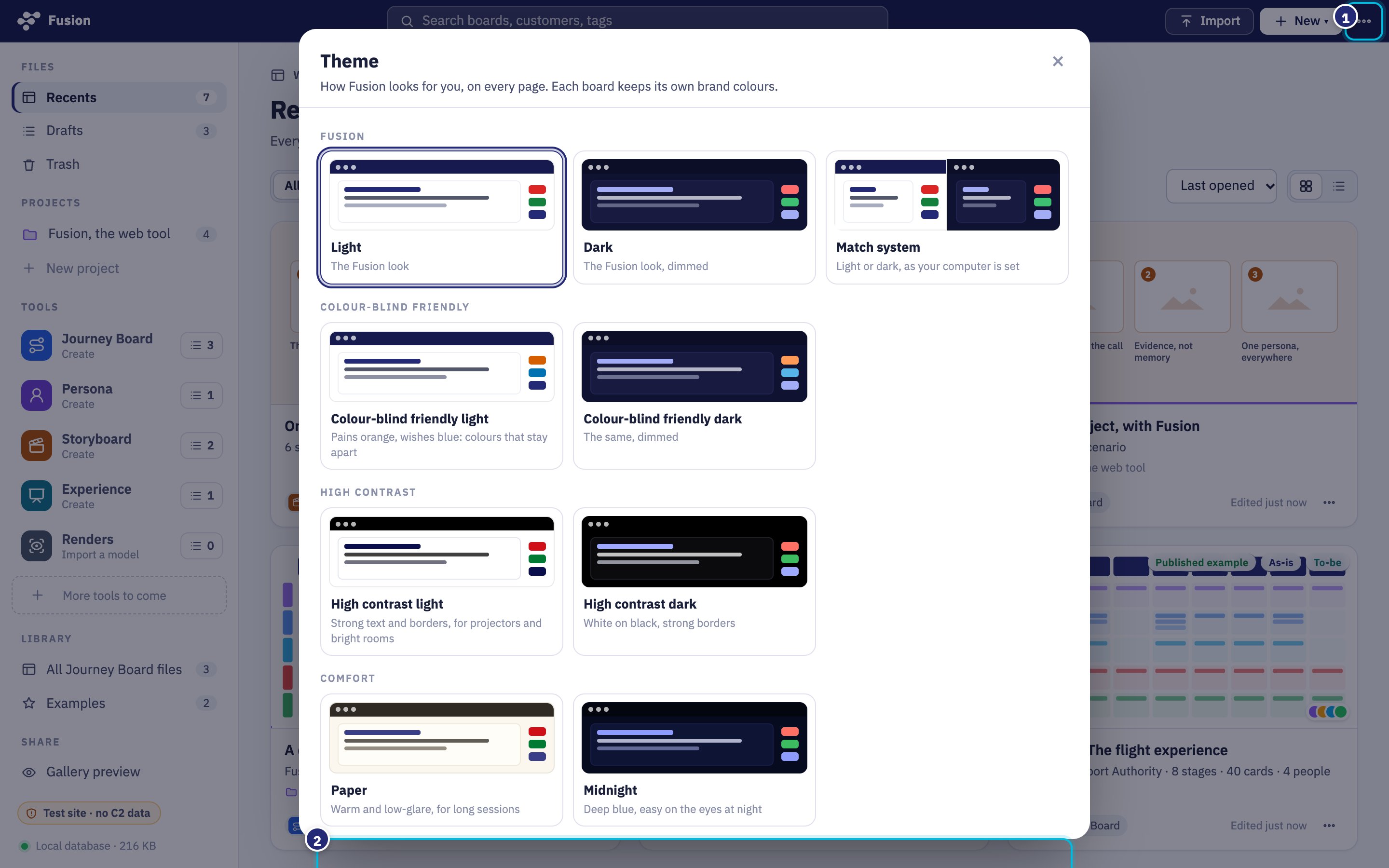
The theme is kept in this browser. Each board keeps its own brand colours, so your theme doesn't change what other people see.
The panel and the keys, in every tool
Every tool works the same way. The toolbar sits at the bottom of the page, and the panel sits on the right.
Guide comes first in every toolbar (press F). If you don't know a tool yet, it walks you through it in a few short steps while you fill it in, and points at each part as it goes. Choose Exit guide, or the cross, to stop.
- Select something on the canvas, such as a card, a scene or an item on a slide. The panel shows it: its kind, its name and ⋯ with Duplicate and Delete where they apply.
- Use the tabs at the top of the panel: Design for how it looks, Content for what it says, Layers for everything in the file in order. A tool shows only the tabs it needs.
- Select a section's heading to fold it away, and again to open it.
- With nothing selected, the panel shows the file itself.
- Press ], or the button at the top right of the panel, to hide it. The button on the right edge brings it back. Each tool remembers whether you hid it.
On a phone, the panel opens from the bottom when you select something.
Press ? in any tool for the list of keyboard shortcuts. These work everywhere:
| Key | What it does |
|---|---|
| V | Select |
| H | Pan (or hold Space) |
| ⌘Z / ⇧⌘Z | Undo, redo |
| + / − | Zoom in, out |
| ⌘0 or ⇧1 | Fit |
| ] | Show or hide the panel |
| ? | This list |
| F | Guide: the tool step by step |
| Esc | Close, deselect |
Each tool's topic lists its own keys. On Windows, use Ctrl for ⌘.
Present, in every tool
Every tool has Present at the top right of the Fusion bar. It shows the file you are in as slides, full screen, with the same controls and keys everywhere: the arrow keys to move, G for all the slides, Esc to leave. The topic Present and export says more.
Where your work is saved
Fusion saves as you work. The Fusion bar shows Saving…, then Saved. If it shows Not saved, check your connection and keep the page open until it says Saved.
Your files are kept in your Fusion account, not on your computer, so you can open them from any browser once you sign in. To sign out, select your initials at the top right, then Sign out.